How to Block Pinterest on iPhone (App, Website, iOS 27)
One recipe becomes two hours of boards. How to block Pinterest on iPhone: Time Allowances on iOS 27, App Limits on iOS 16 to 26, and pinterest.com.
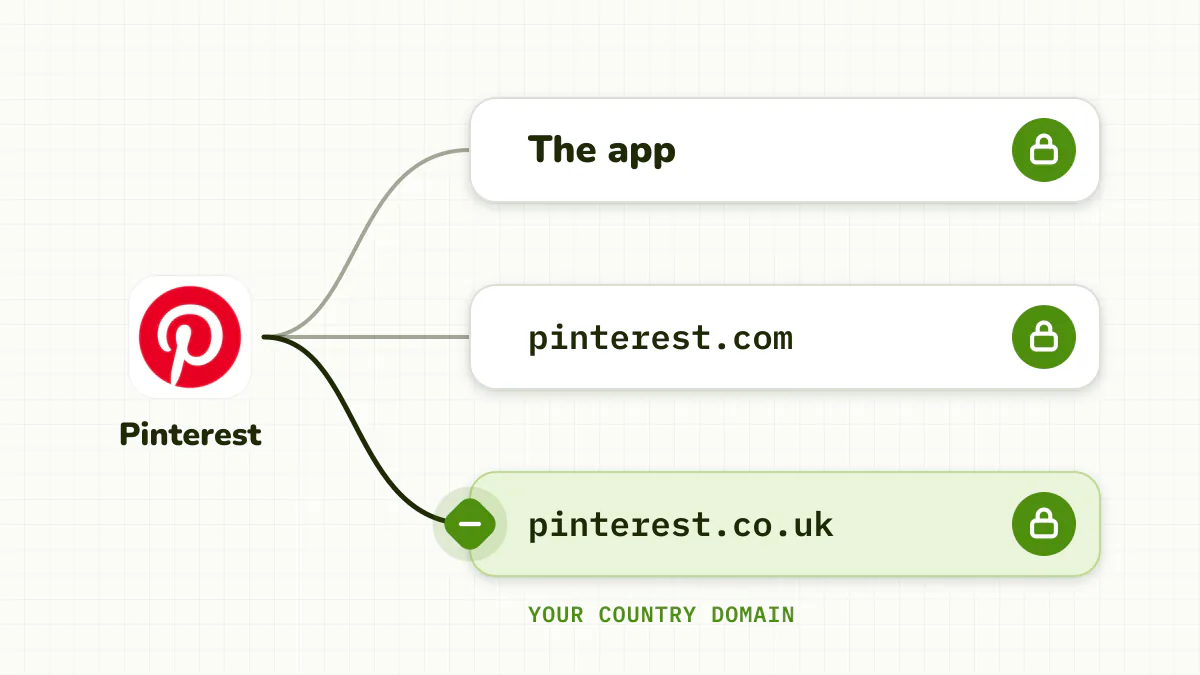
To block Pinterest on iPhone, put a Screen Time limit on the app, then block pinterest.com and your country's Pinterest domain in Safari, because Google search results will keep sending you back. If you use Pinterest for real planning, don't ban it: limit long browsing sessions and let quick searches through.
Check your version in Settings > General > About. On iOS 27, App Limits are now Time Allowances (Settings > Screen Time > Time Allowances), and Downtime is now Screen Time Schedule.
Quick answer
- iOS 27: Time Allowances, a low allowance on Pinterest's category, locked under Manage Screen Time > Lock Screen Time Settings.
- iOS 16 to 26: Settings > Screen Time > App Limits > Add Limit > Pinterest, Block at End of Limit on.
- Browser: pinterest.com plus your local domain (pinterest.co.uk, pinterest.fr...).
- Notifications: turn off "ideas for you" pushes and emails.
Why is Pinterest so hard to put down?
Because it doesn't feel like social media. It feels like planning: a kitchen, a wedding, an outfit, a trip. Every pin leads to "More like this", another endless grid, and none of it feels wasted until you look at the clock.
Pinterest also comes to you. Its pages rank all over Google Images, so a search for paint colors drops you straight back into the grid.
How do I block Pinterest on iOS 27?
iOS 27 (September 2026) replaced App Limits with Time Allowances, set by category (Apple's examples: Entertainment, Games, Social Media) rather than app by app.
- Open Settings > Screen Time > Time Allowances. If asked, turn on App & Website Activity.
- Tap the category Pinterest belongs to and drag its slider down. Apps work until they reach "either the category's allowance or the daily total".
- To limit Pinterest alone, tap Manage Categories > + and create a category for it. Apple documents creating categories but not a one-app category, so treat this as a likely route rather than a promise.
- Keep Pinterest off Always Allowed.
- Lock it: Manage Screen Time > Lock Screen Time Settings.
Weekday evenings: in Screen Time Schedule, turn on Schedule, Add Schedule, pick Monday to Friday and an evening window, and leave Pinterest's category out of what it allows.
Apple doesn't document what the limit screen offers on your own phone. Early hands-on reports say Ignore Limit is still there and asks for the passcode.
How do you block the Pinterest app on iOS 16 to 26?
- Open Settings > Screen Time and turn it on if needed.
- Tap App Limits > Add Limit.
- Find Pinterest and select it.
- Pick a time: 1 minute for a near-total block, around 20 minutes for a cap.
- Turn on Block at End of Limit, which needs a Screen Time passcode (Settings > Screen Time > Lock Screen Time Settings, or Use Screen Time Passcode on iOS 16).
Without the passcode, you'll just see Ignore Limit. See how to remove "Ignore Limit".
Planning a project? A time window often beats a tight daily cap. Use Downtime (Settings > Screen Time > Downtime > Scheduled) to shut Pinterest on weekday evenings and keep it off Always Allowed.
How do you block Pinterest in Safari?
This is where most Pinterest blocks leak. On iOS 16 to 26:
- Settings > Screen Time > Content & Privacy Restrictions, and turn it on.
- App Store, Media, Web & Games > Web Content > Limit Adult Websites (on iOS 16 to 18.0, the first menu is Content Restrictions or Store, Web, Siri & Game Center Content).
- Under Never Allow, add pinterest.com.
- Add your country domain too. Search Google Images, tap a Pinterest result, and note the address: pinterest.co.uk, pinterest.fr, pinterest.ca and so on.
On iOS 27, Apple's guide for your own iPhone doesn't document a website block list. Look for Apps & Websites in Screen Time; otherwise check Content & Privacy Restrictions for the Web Content screen. An allowance covers an app's website only if the app declares it, so test pinterest.com and your country domain. More in how to block websites on iPhone.
What can you change inside Pinterest?
Pinterest has no personal time limit. What helps:
- Turn off notifications. Profile > ⚙️ > Notifications, for both push and email. Pinterest sends a lot of "ideas for you".
- Narrow your feed. Tidy boards and interests so the home grid is less tempting.
- Search, save, leave. Go in for one thing, save it to a board, close the app. Browsing the home feed is where the hours go.
A Face ID lock (long-press the icon, Require Face ID) keeps others out but opens instantly for you.
Why don't these blocks hold?
Pinterest leaks through search and through extra domains. And every built-in block can be undone by the person who set it: "Ignore Limit", a passcode you know, a website rule you can switch off. Every gap is in Screen Time loopholes.
The daily limit is also the wrong shape. A quick search for one recipe is useful; a two-hour grid scroll isn't. A daily total counts both the same.
How do you block Pinterest so it holds?
Detox (iPhone and iPad) is built for the moment the built-in tools fail.
- Add Pinterest to a Detox rule, plus pinterest.com and your country domain.
- Set a session limit, say 20 minutes in a row. Looking up one idea and saving it is fine. Once you have browsed continuously past your limit, Pinterest locks for a short break.
- Let short visits reset. A couple of minutes away and the count goes back to zero.
- Add a schedule to block Pinterest on weekday evenings if that's when it gets you.
- Turn on Strict mode so you can't edit or delete the rule mid-project. An urgent unblock covers real emergencies, once every 24 hours.
It's iOS only and paid, with a free trial.
The bottom line
Limit the app (Time Allowances on iOS 27, App Limits on iOS 16 to 26), block pinterest.com and your local domain, and turn off the "ideas for you" notifications. If Pinterest is genuinely useful but eats your evenings, limit continuous browsing rather than the day's total, and go in with a search, not the feed.
Related: How to block Instagram on iPhone · What to do instead of scrolling · How to block apps on iPhone: every method ranked
Frequently asked questions
How do I block Pinterest on iPhone?
On iOS 16 to 26: Settings > Screen Time > App Limits > Add Limit, select Pinterest, set a time and turn on Block at End of Limit. Then add pinterest.com under Content & Privacy Restrictions > App Store, Media, Web & Games > Web Content > Never Allow.
How do I block Pinterest on iOS 27?
App Limits are now Time Allowances: Settings > Screen Time > Time Allowances. Lower the allowance on Pinterest's category, or create a category for it under Manage Categories, then lock it under Manage Screen Time > Lock Screen Time Settings. Apple doesn't document whether a category can hold just one app, so check what's in it.
Does Pinterest have a screen time limit?
No. Pinterest has no personal daily limit. You can turn off its notifications, but for a real limit use Screen Time or a blocker.
Why does Pinterest still open in Safari when I've blocked it?
Pinterest uses country domains such as pinterest.co.uk and pinterest.fr. Add the ones that show up in your searches to Never Allow.
Is Pinterest addictive?
It can be. The endless grid and "More like this" keep you browsing, and because it feels like planning, long sessions are easy to justify.