How to Block Apps on iPhone (iOS 27): 7 Methods, Ranked
Every way to block an app on iPhone, from iOS 27 Time Allowances to App Limits, Focus and Face ID, ranked by how easily you'll cheat. One actually holds.
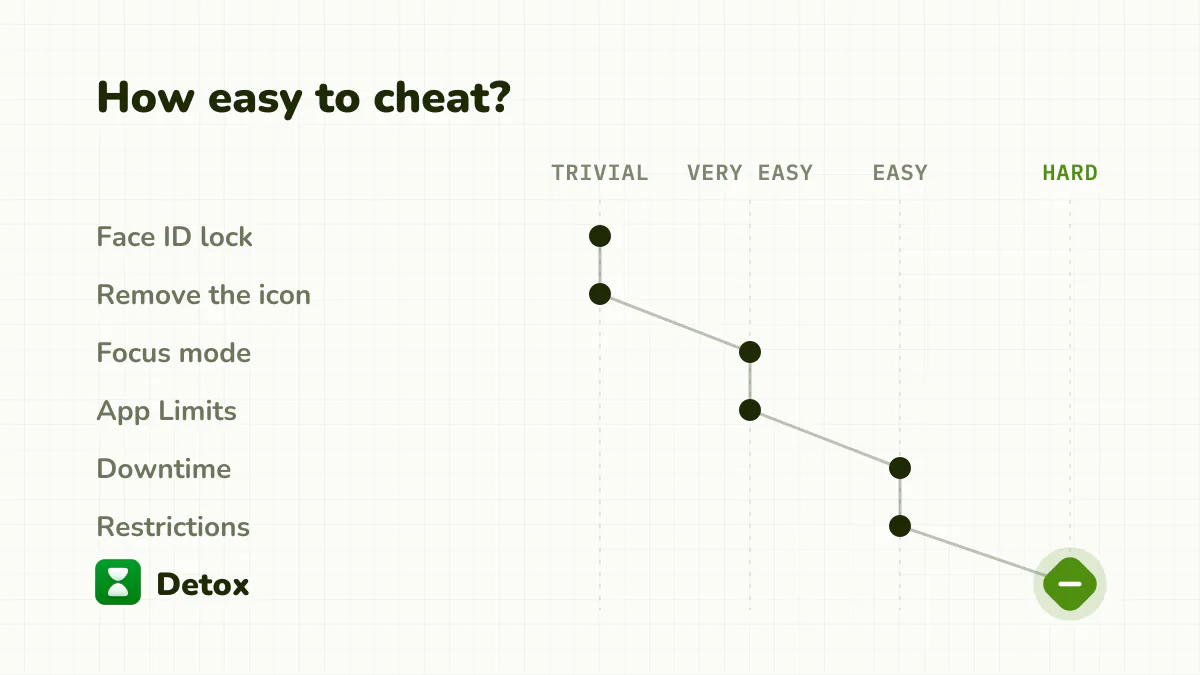
You can block an app on iPhone in seven ways, from Screen Time limits to a Face ID lock, and most of them take seconds to bypass. The built-in tools are fine for nudges and for kids' phones. To block yourself, you need a tool without a one-tap way out.
First, check your version in Settings > General > About. On iOS 27, App Limits are now Time Allowances (Settings > Screen Time > Time Allowances) and Downtime is now Screen Time Schedule. On iOS 16 to 26, App Limits and Downtime work as before.
Quick answer
- Fastest built-in block (iOS 27): Settings > Screen Time > Time Allowances, a short allowance on the app's category.
- Fastest built-in block (iOS 16 to 26): Settings > Screen Time > App Limits > Add Limit.
- Bedtime: Screen Time Schedule (iOS 27) or Downtime, with only essentials allowed.
- Stop reinstalls: Content & Privacy Restrictions.
- Less temptation: Focus mode, removing icons, grayscale.
- A block that holds: a dedicated blocker with a strict mode, like Detox.
How do I block apps on iOS 27?
iOS 27 (September 2026) split Screen Time in two: Time Allowances for how long, by category (Entertainment, Games, Social Media...), and Screen Time Schedule for when.
- Open Settings > Screen Time > Time Allowances. If asked, tap Turn On App & Website Activity.
- Drag the top slider to set a daily total for all your apps.
- Tap a category, such as Social Media, and set its own allowance. Apps stay usable until they reach "either the category's allowance or the daily total", in Apple's words.
- To target one app, tap Manage Categories > + and create a category for it. Apple documents creating categories, not a category holding a single app; early hands-on reports say you can choose which apps a category holds.
- Open Settings > Screen Time > Always Allowed and remove anything you want limited. Apps there ignore every allowance and schedule.
- Lock it: Manage Screen Time > Lock Screen Time Settings, with a code different from your phone's.
For a time window, go to Screen Time Schedule, turn on Schedule, tap Add Schedule, pick the days, then set each window's times and which categories it allows.
What Apple doesn't say: its iOS 27 guide no longer mentions Block at End of Limit, and doesn't describe the limit screen for allowances you set yourself. Early hands-on reports say Ignore Limit is still there. The new features need version 27 on all your Apple devices. Apple also says that if an app declares an associated website, "the Time Allowance applies to both"; for other sites, see how to block websites on iPhone, since Apple doesn't document a website block list for your own iPhone on iOS 27.
How do you block apps with App Limits on iOS 16 to 26?
App Limits sets a daily total for an app or a whole category.
- Open Settings > Screen Time.
- Tap App Limits, then Add Limit.
- Choose an app or category (like Social) and tap Next.
- Set the time (say 30 minutes), pick the days, and tap Add.
When you hit the cap, the app dims and a limit screen appears.
The weakness: that screen has an "Ignore Limit" button. One tap buys 15 more minutes or the rest of the day, and you know the passcode. Because it's a daily total, a 5-second glance costs as much as a 40-minute scroll. More in our Apple Screen Time alternative breakdown.
How do you block apps with Downtime on iOS 16 to 26?
Downtime blocks everything except the apps you allow during a scheduled window.
- Open Settings > Screen Time > Downtime.
- Turn on Scheduled.
- Set the window, for example 9:30 p.m. to 7:00 a.m., every day or custom days.
- Back in Screen Time, tap Always Allowed and keep the essentials: Phone, Messages, Maps.
The weakness: the same "Ignore Limit" and the same passcode. If you know the code, Downtime is a curtain, not a lock.
How do you stop yourself from reinstalling an app?
Content & Privacy Restrictions can block App Store installs, so a deleted app stays deleted.
- Open Settings > Screen Time > Content & Privacy Restrictions and turn it on.
- Tap iTunes & App Store Purchases > Installing Apps > Don't Allow.
- Under Allowed Apps & Features (Allowed Apps on iOS 16), you can hide some built-in apps like Safari.
The weakness: it targets built-in apps and installs, not a specific app on demand, and the passcode reverses all of it. On iOS 27, Apple's guide for your own iPhone no longer documents these App Store settings, so check whether they still appear.
Can Focus mode block apps?
Not really, but it's underrated for reducing the pull. A Focus can hide Home Screen pages and silence apps.
- Open Settings > Focus and tap +.
- Pick a template or Custom, name it, tap Customize Focus.
- Choose who and which apps can notify you. Leave the distracting ones out.
- Under Home Screen, pick a page without your time-sink apps.
The weakness: a hidden app is one search away, and Control Center turns the Focus off in a second. Setup details in our iPhone Focus mode guide.
What about removing icons or a Face ID lock?
Remove from Home Screen: touch and hold the icon, tap Remove App > Remove from Home Screen. The app stays in the App Library, so opening it takes a search instead of a reflex tap. It breaks autopilot reaches and nothing more.
Face ID lock (iOS 18 or later): touch and hold the icon, tap Require Face ID, and confirm. Hide and Require Face ID also moves it into a hidden folder. Some built-in apps (Camera, Clock, Settings, Maps) can't be locked.
The weakness: both are privacy or tidiness features. Face ID opens in a fraction of a second for you, the person it's meant to stop. Great against a nosy friend, useless against yourself at midnight.
Why do all the built-in blocks fail?
Every native method has a one-tap or one-glance escape, and all of them rest on a passcode you hold. That's by design. Screen Time was built for a parent to manage a child's phone; the model assumes the restricted person doesn't know the code.
Turn it on yourself and you are both parent and child.
You're not failing for lack of willpower. The tool was never built to resist the person holding the passcode. That's an environment problem, and you can change the environment.
What actually blocks apps in a way that holds?
A tool that adds real friction at the moment of the craving. That is what Detox is built for: an iPhone and iPad app for adults trying to break the scroll, not parents policing a kid.
- Pick your apps and websites. Choose the apps that eat your time; everything else stays open.
- Set a session limit. For example: 15 minutes in a row, then blocked for 5. Quick checks go straight through. Once you have scrolled the chosen apps continuously past your limit, they lock for that break, then reopen. Step away for a couple of minutes and the count resets.
- Add a schedule or a daily limit. Lock apps every night from 10 p.m., during work hours, or after a daily budget. Block now locks them instantly for a study session.
- Choose your Unblocks. Allowed means a short wait before you get apps back, a little longer each time that day. None means no way out until the block ends.
- Turn on Strict mode. While a rule blocks, you can't change or delete it or uninstall apps. For real emergencies, an urgent unblock opens everything once every 24 hours.
The method is backed by research with Swiss universities and hospitals, published in JMIR Formative Research (our research). Detox is iOS only and paid, with a free trial. Want to compare first? See the best screen time apps for iPhone.
Which method should you use?
| Method | How it blocks | How bypassable | Best for |
|---|---|---|---|
| App Limits / Time Allowances | Daily cap per app or category | Very easy: "Ignore Limit" and your passcode | Seeing your numbers, nudges |
| Downtime / Screen Time Schedule | Everything but allowed apps, on a schedule | Easy: "Ignore Limit" and passcode | A rough bedtime boundary |
| Content Restrictions | Removes built-ins, blocks installs | Easy: passcode | Stopping reinstalls |
| Focus mode | Hides apps, silences notifications | Very easy: Control Center | Cutting noise |
| Remove from Home Screen | A few seconds of friction | Trivial | Autopilot reaches |
| Face ID lock | Face scan to open | Trivial for you | Privacy from others |
| Detox | Session limits, schedules, daily limits | Hard: strict mode locks the rule | Blocks that actually hold |
The bottom line
To see your usage or manage a child's phone, Apple's tools are all you need. To block yourself, stack the free tricks for what they're good at (fewer icons, grayscale in the evening), then put one real, hard-to-dismiss barrier on the apps you struggle to put down.
App-by-app guides
For one app at a time, see how to block Instagram on iPhone, or our guides for TikTok · YouTube · Facebook · Reddit · Snapchat · X (Twitter) · Threads · Pinterest · WhatsApp
Frequently asked questions
How do I block an app on my iPhone?
On iOS 16 to 26, Settings > Screen Time > App Limits sets a daily cap on an app or category, and Downtime blocks everything except allowed apps on a schedule. All of these can be dismissed in a few taps, so to block yourself you'll want a stricter tool.
Where are App Limits in iOS 27?
They became Time Allowances: Settings > Screen Time > Time Allowances, set per category, with Manage Categories to create your own. Downtime became Screen Time Schedule. Both need version 27 on all your Apple devices.
Can you block an app on iPhone without Screen Time?
Yes. Lock it behind Face ID (touch and hold the icon, tap Require Face ID), remove it from your Home Screen, hide it with a Focus mode, or install a dedicated blocker with its own limits.
How do I permanently block an app on my iPhone?
There's no native permanent block: every Apple control can be undone with the Screen Time passcode you set. Use a blocker with a strict mode that locks the rule while it's active.
Why do I keep bypassing my own app blocks?
Apple's blocks were built for a parent managing a child's phone. When you block yourself, you know the passcode and the Ignore Limit button, so the off switch is always one tap away. That's a design problem, not a willpower failure.