How to Block YouTube on iPhone: Safari, Shorts and iOS 27
Block YouTube on iPhone and keep the videos you need: Time Allowances on iOS 27, App Limits on iOS 16 to 26, youtube.com in Safari, and taming Shorts.
To block YouTube on iPhone, put a Screen Time limit on the app, block youtube.com in Safari, and let someone else hold the passcode. The catch: YouTube is also the most useful app you'll ever block, so a blunt block tends to get undone the first time you need a tutorial.
Check your version first (Settings → General → About). On iOS 27, App Limits are now Time Allowances (Settings → Screen Time → Time Allowances), and Downtime is now Screen Time Schedule.
Quick answer
- iOS 27: Settings → Screen Time → Time Allowances, a low allowance on YouTube's category, locked under Manage Screen Time → Lock Screen Time Settings.
- iOS 16 to 26: Settings → Screen Time → App Limits → YouTube, with Block at End of Limit on.
- Browser: youtube.com and m.youtube.com under Never Allow (iOS 16 to 26).
- Shorts: set YouTube's own Shorts feed limit (it can be zero, but you can dismiss it), and turn off autoplay.
Why is YouTube so hard to put down?
Two features do most of the damage. Autoplay starts the next video before you've decided to watch it, so there's no natural stopping point. Shorts brings the TikTok model (vertical, endless, swipe for more) into an app you opened for something else.
You open YouTube to fix a leaking tap. The app's job is to make you forget that.
How do I block YouTube on iOS 27?
iOS 27 (September 2026) replaced App Limits with Time Allowances, which work by category (Apple's examples: Entertainment, Games, Social Media), not app by app.
- Open Settings → Screen Time → Time Allowances. If asked, turn on App & Website Activity.
- Tap the category YouTube belongs to and drag its slider down. Apps stay usable until they reach "either the category's allowance or the daily total".
- To limit YouTube alone, tap Manage Categories → + and create a category for it. Apple documents creating categories, not a one-app category, so treat this as a likely route rather than a promise.
- Check Always Allowed: YouTube shouldn't be on it.
- Lock it: Manage Screen Time → Lock Screen Time Settings.
Evenings: Screen Time Schedule → turn on Schedule → Add Schedule, pick days and a window such as 10:00pm → 7:00am, and leave YouTube's category out of what it allows.
Apple doesn't say what the limit screen shows on your own phone. Early hands-on reports say Ignore Limit is still there and asks for the passcode.
How do I block YouTube on iOS 16 to 26?
- Open Settings → Screen Time and turn it on.
- Tap App Limits → Add Limit.
- Search for YouTube and select it.
- Pick a time: 1 minute to block it almost completely, or something like 45 minutes to cap it.
- Turn on Block at End of Limit. This needs a Screen Time passcode (Lock Screen Time Settings, or Use Screen Time Passcode on iOS 16).
Without the passcode, the limit screen just offers Ignore Limit. Ask someone else to set it, then read how to remove "Ignore Limit".
At set times: Settings → Screen Time → Downtime, turn on Scheduled, pick your hours (say 10:00pm → 7:00am) and keep YouTube off Always Allowed. If you use YouTube for study by day, a window often beats a tight daily cap.
How do I block YouTube in Safari?
An app limit only covers the app, and YouTube works fine in a browser. On iOS 16 to 26:
- Settings → Screen Time → Content & Privacy Restrictions (turn it on).
- App Store, Media, Web & Games → Web Content → Limit Adult Websites. On iOS 16 to 18.0, the first menu is called Content Restrictions or Store, Web, Siri & Game Center Content.
- Under Never Allow, add youtube.com and m.youtube.com.
This is all or nothing, and it also blocks YouTube videos embedded on other sites.
On iOS 27, Apple's guide for your own iPhone doesn't document a website block list. Look for Apps & Websites in Screen Time; otherwise check Content & Privacy Restrictions for the Web Content screen. Apple says an allowance covers an app's website only if the app declares it, so test youtube.com in Safari. More in how to block websites on iPhone.
Can I turn off YouTube Shorts or autoplay?
YouTube has no switch that removes Shorts, but the app now has a Shorts feed limit: You > Settings > Time management > Shorts feed limit. You can set it to zero; when you hit it, YouTube lets you dismiss it, so treat it as a reminder. You can also make Shorts less sticky:
- Turn off autoplay: tap the autoplay toggle at the top of the player, or go to Settings → Autoplay.
- Set reminders: Settings → General → Remind me to take a break and Remind me when it's bedtime.
- Pause watch history: a less personalised feed is a less tempting one, though YouTube changes how this behaves.
A Face ID lock (long-press the icon, Require Face ID) stops other people, not you.
Why don't these blocks hold?
Because you genuinely need the app. A 1-minute limit blocks the tutorial you wanted; a generous one never kicks in. And every built-in block was set by you, so you can undo it. We list every gap in Screen Time loopholes.
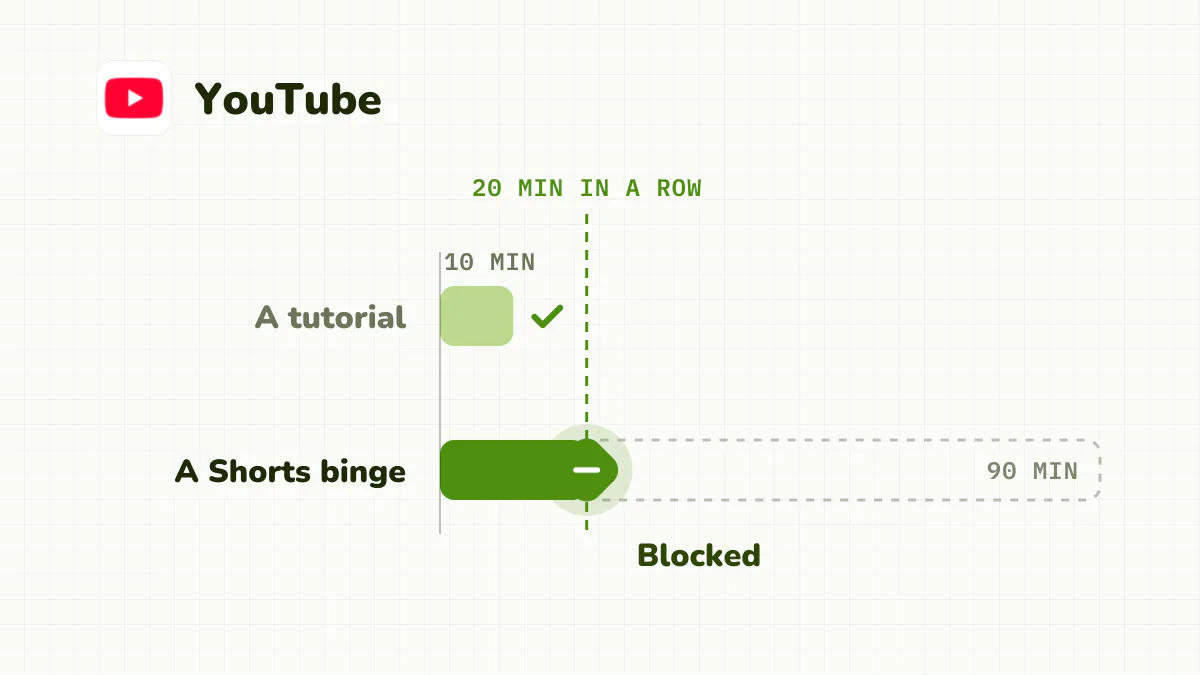
There's also a shape problem. A 10-minute tutorial and a 90-minute Shorts binge look the same to a daily total.
| Method | What it blocks | Easy to bypass? | Best for |
|---|---|---|---|
| App limit or allowance, no passcode | The app, after a daily total | Yes, one tap | Awareness |
| Same, with someone else's passcode | The app, after a daily total | Harder | A strict daily cap |
| Downtime or Screen Time Schedule | The app, during set hours | Moderate | Nights, work hours |
| Website block | youtube.com, m.youtube.com | Moderate | Closing the browser gap |
| Detox | The app, after a continuous session, plus schedules | Hard (strict mode) | Stopping the binge itself |
A limit on the binge, not the tutorial
Detox limits continuous use instead of your daily total. Watch a recipe and leave: nothing happens. Keep scrolling YouTube past your session limit (say 20 minutes) and the app is blocked for a while. A short break resets the counter, so quick checks never add up to a lockout.
You can also schedule YouTube off for the evening, add youtube.com to the block, and turn on strict mode so the rule can't be edited while it's active. On a computer, the free Detox Chrome extension hides YouTube Shorts; see how to block YouTube Shorts on your computer.
The bottom line
Limit the app (Time Allowances on iOS 27, App Limits on iOS 16 to 26), block youtube.com in Safari, protect the evening and turn off autoplay. If you need YouTube for real things but still lose hours to it, a limit on continuous watching fits far better than a daily cap. That's what Detox is built for, with a free trial.
Related: How to block TikTok on iPhone · How to stop phone distraction while studying · How to block apps on iPhone
Frequently asked questions
How do I block YouTube on iPhone?
On iOS 16 to 26, go to Settings > Screen Time > App Limits > Add Limit, select YouTube, set a time and turn on Block at End of Limit. Then add youtube.com and m.youtube.com to Web Content > Never Allow so Safari isn't a way round.
How do I block YouTube on iOS 27?
App Limits are now Time Allowances: Settings > Screen Time > Time Allowances. They work by category, so lower the allowance on YouTube's category (or create one for it under Manage Categories) and lock it under Manage Screen Time > Lock Screen Time Settings. Apple doesn't document whether a category can hold just one app, so check what's in it.
Can you block YouTube Shorts only on iPhone?
Partly. Screen Time blocks the whole app, but the YouTube app now has a Shorts feed limit (You > Settings > Time management > Shorts feed limit), which can be set to zero. You can dismiss it when it kicks in, so it's a nudge, not a block.
How do I block YouTube in Safari?
On iOS 16 to 26: Settings > Screen Time > Content & Privacy Restrictions > App Store, Media, Web & Games > Web Content > Limit Adult Websites, then add youtube.com and m.youtube.com under Never Allow. On iOS 27, Apple doesn't document a website block list for your own iPhone.
Can I block YouTube but keep it for studying?
Yes. Use a schedule to protect the evening and leave YouTube open by day, or use a limit on continuous watching that allows short, useful videos but stops long sessions.