How to Block TikTok on iPhone (iOS 27): 6 Methods That Stick
How to block TikTok on iPhone and Safari: iOS 27 Time Allowances, iOS 16 to 26 App Limits, TikTok's own limit, and what actually holds mid-video.
To block TikTok on iPhone, combine three things: a Screen Time App Limit with Block at End of Limit, a Downtime window that starts well before bed, and tiktok.com blocked in Safari. TikTok's own time limit is a nice extra nudge, but you set its passcode, so it won't hold mid-video. For that, you need a block triggered by the binge itself.
Which menus you use depends on your version (Settings > General > About). On iOS 27, App Limits are now Time Allowances, at Settings > Screen Time > Time Allowances, and Downtime is Screen Time Schedule.
Quick answer
- App, iOS 27: Time Allowances, a short allowance on TikTok's category, locked under Manage Screen Time.
- App, iOS 16 to 26: App Limits > Add Limit > TikTok, Block at End of Limit on.
- Nights: a schedule from 9:30 p.m., TikTok off Always Allowed.
- Browser: tiktok.com under Never Allow (iOS 16 to 26).
- In TikTok: Time and wellbeing > daily limit and sleep reminders.
- Holds mid-scroll: a session limit with no one-tap escape.
Why is TikTok so hard to put down?
People don't say they spend time on TikTok. They say they lose it. The For You feed predicts the next video you won't swipe past, and it learns fast.
Each video is short, so each swipe feels like a tiny commitment, with no natural pause.
How do I block TikTok on iOS 27?
iOS 27 (September 2026) replaced App Limits with Time Allowances, set by category such as Entertainment or Social Media.
- Open Settings > Screen Time > Time Allowances. If asked, tap Turn On App & Website Activity.
- Tap Manage Categories to see which category holds TikTok, then tap that category and drag its slider down.
- To limit TikTok alone, tap Manage Categories > + and create a category for it. Apple documents creating categories, not one holding a single app; early hands-on reports say you can choose which apps a category holds.
- Check Settings > Screen Time > Always Allowed doesn't list TikTok.
- Lock it: Manage Screen Time > Lock Screen Time Settings, with a code that isn't your phone's.
Start the night early: Screen Time Schedule, turn on Schedule, Add Schedule, and set a 9:30 p.m. to 7 a.m. window that doesn't allow TikTok's category.
Apple's iOS 27 guide doesn't mention Block at End of Limit or say what the limit screen offers for an allowance you set yourself; early hands-on reports say Ignore Limit is still there. The new features need version 27 on all your Apple devices. For tiktok.com, Apple says an allowance covers an app's website only if the app declares it, and doesn't document a website block list for your own iPhone; see how to block websites on iPhone.
How do you block TikTok on iOS 16 to 26?
- Open Settings > Screen Time and turn it on if needed.
- Tap App Limits > Add Limit.
- Find TikTok and select it.
- Pick a time: 1 minute for a near-total block, around 30 minutes for a cap.
- Turn on Block at End of Limit. This needs a Screen Time passcode (Settings > Screen Time > Lock Screen Time Settings, or Use Screen Time Passcode on iOS 16).
Without a passcode, you just get Ignore Limit. See how to remove "Ignore Limit".
Start Downtime early. TikTok's late-night pull is notorious. In Settings > Screen Time > Downtime, turn on Scheduled, set 9:30 p.m. to 7:00 a.m., and keep TikTok off Always Allowed. A window that starts well before bed is one of the most effective single changes you can make.
Close the browser: in Content & Privacy Restrictions > App Store, Media, Web & Games > Web Content > Limit Adult Websites (on iOS 16 to 18.0, Content Restrictions or Store, Web, Siri & Game Center Content), add tiktok.com under Never Allow.
What does TikTok's own limit do?
In TikTok, go to Profile > ☰ > Settings and privacy > Time and wellbeing (older versions say Digital Wellbeing or Screen time). You can set a daily screen time limit, screen time breaks and sleep reminders.
At the limit, TikTok asks for a passcode to keep watching, but it's a passcode you chose, and the limit can be changed from the same menu. A helpful nudge, not a lock. TikTok moves these settings between versions.
A Face ID lock (long-press the icon, Require Face ID) keeps others out; your own face opens it instantly.
Why don't these blocks hold?
TikTok blocks fail in a specific way: the limit screen appears mid-video, when you're most absorbed, and dismissing it takes a second. Friends also share TikToks into group chats, so you get pulled back through links even when the app is blocked. See Screen Time loopholes for every gap.
A daily allowance is the wrong shape too: it tends to be spent in one go, usually at night.
How do you block TikTok so it holds?
Detox (iPhone and iPad) steps in at the binge, not at the first open.
- Add TikTok to a Detox rule, plus tiktok.com for the browser.
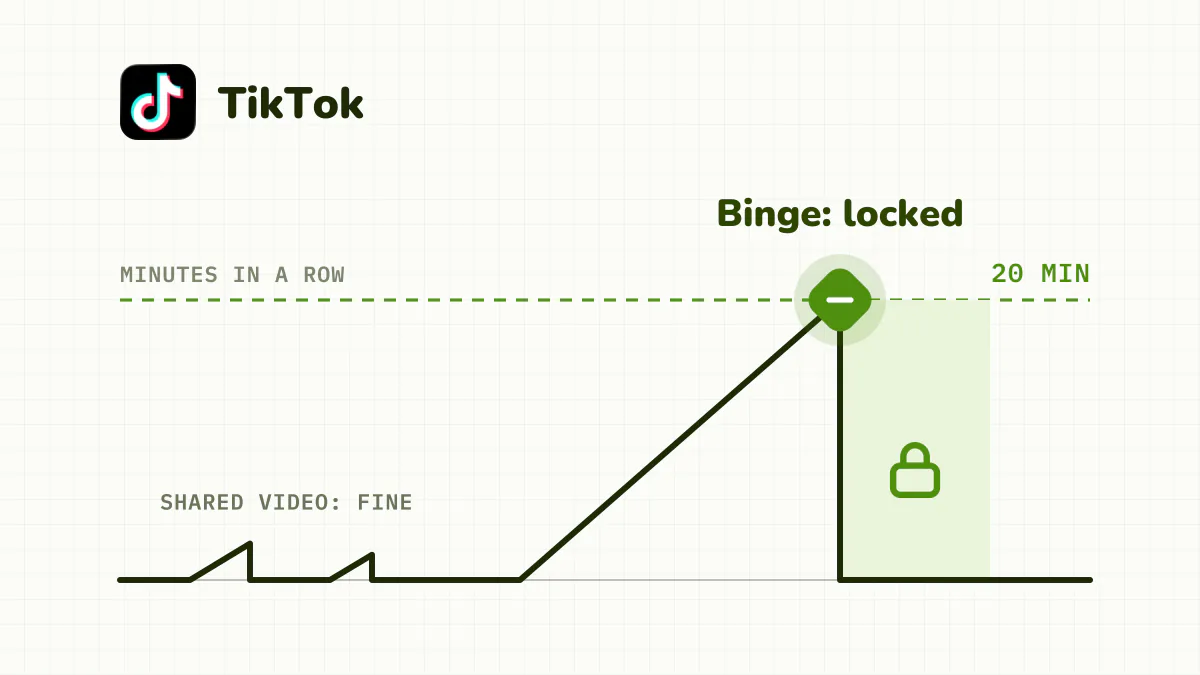
- Set a session limit, say 20 minutes in a row, then blocked for a short break. Watching a video a friend sent is fine. Once you have scrolled continuously past your limit, TikTok locks.
- Add a schedule to block TikTok from 9:30 p.m. every night, or all day during exam season.
- Set Unblocks to None on the night schedule. TikTok is the app most people will reach for anyway, so take the way out off the table.
- Turn on Strict mode so you can't edit or delete the rule while it blocks. An urgent unblock covers real emergencies, once every 24 hours.
It's iOS only and paid, with a free trial.
Which method should you use?
| Method | Blocks | Easy to bypass? | Best for |
|---|---|---|---|
| App Limit or Time Allowance, own passcode | The app, after a daily total | Yes, one tap | Awareness |
| Same, someone else's passcode | The app, after a daily total | Harder | Strict daily cap |
| Downtime or Screen Time Schedule | The app, at set hours | Moderate | Nights |
| Website block | tiktok.com | Moderate | The browser loophole |
| TikTok's limit | Asks for your own passcode | Yes | Gentle reminders |
| Face ID lock | Nothing, for you | Yes | Privacy |
| Detox | The app after a long session, plus schedules | Hard, strict mode | Stopping the binge |
The bottom line
Combine a limit (a Time Allowance on iOS 27, an App Limit before) with someone else's passcode, an early night window and tiktok.com blocked, and keep TikTok's own limit as an extra nudge. If you still end up on the For You page, you need a block triggered by the binge itself that can't be dismissed mid-video.
Related: How to block Instagram on iPhone · How to block YouTube on iPhone · How to stop scrolling
Frequently asked questions
How do I block TikTok on iPhone?
On iOS 16 to 26, Settings > Screen Time > App Limits > Add Limit, select TikTok, choose a time (1 minute blocks it almost completely) and turn on Block at End of Limit. Set a Screen Time passcode, ideally held by someone else.
How do I block TikTok on iOS 27?
App Limits became Time Allowances, which work by category. In Settings > Screen Time > Time Allowances, give TikTok's category (or one you create for it under Manage Categories) a short allowance, keep TikTok off Always Allowed, and lock it under Manage Screen Time. Apple doesn't document whether a category can hold just one app, so check what's in it.
Does TikTok have a screen time limit?
Yes. Settings and privacy > Time and wellbeing lets you set a daily limit, breaks and sleep reminders. Going past it needs a passcode you chose yourself, so it's easy to override.
How do I block TikTok on Safari?
On iOS 16 to 26: Settings > Screen Time > Content & Privacy Restrictions > App Store, Media, Web & Games > Web Content > Limit Adult Websites, then add tiktok.com under Never Allow. On iOS 27, Apple doesn't document this for your own iPhone, so look for Web Content or use a third-party blocker.
Can I block TikTok but still watch videos friends send me?
Not with Screen Time, which blocks the app for everything. With a session limit like Detox's, opening a shared video is fine; only a long continuous session triggers the block.