How to Block WhatsApp on iPhone: At Night, Work or for Good
Miss nothing urgent, just the 200 group-chat pings. How to block or limit WhatsApp on iPhone at set times, iOS 27 included, while staying reachable.
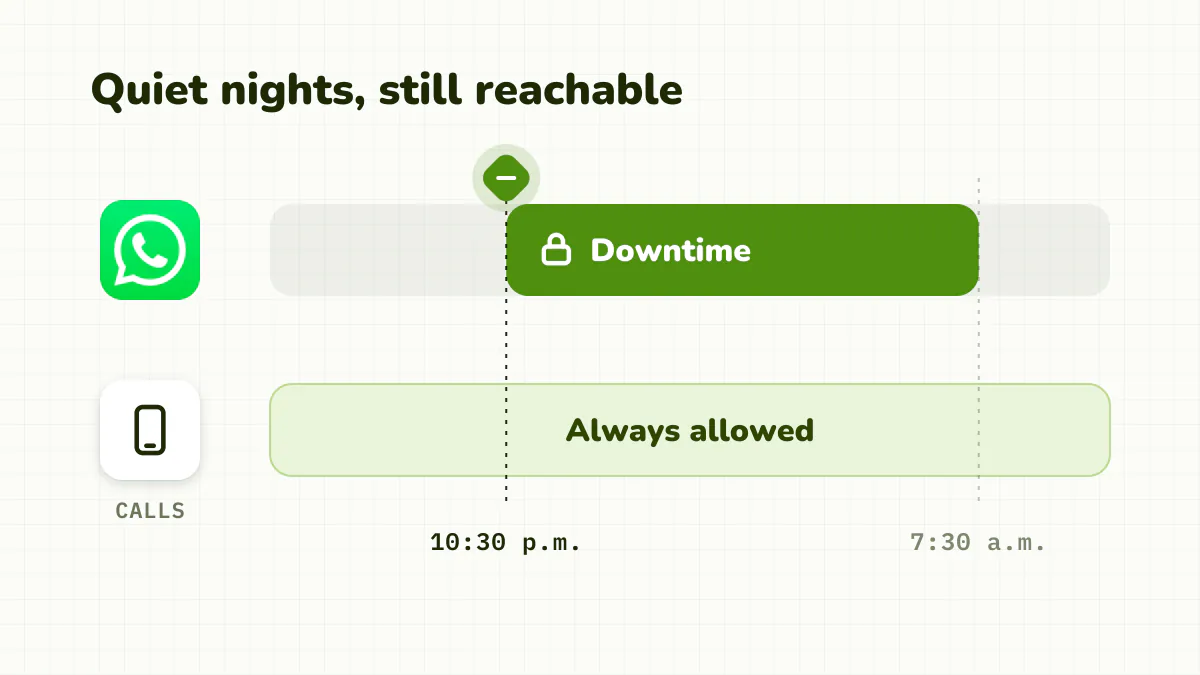
Blocking WhatsApp completely rarely makes sense: your family, friends and often your work live there. The better move is to turn the volume down and block it at the right times. Mute the busy groups, block it at night with Phone still allowed, and keep the people who matter able to reach you.
Check your version in Settings > General > About. On iOS 27, Downtime is now Screen Time Schedule and App Limits are now Time Allowances, both under Settings > Screen Time.
Quick answer
- First: mute busy groups and turn off group notifications. It often beats any limit.
- Nights, iOS 27: Screen Time Schedule, WhatsApp's category left out, Phone under Always Allowed.
- Nights, iOS 16 to 26: Downtime, WhatsApp off Always Allowed, Phone on it.
- Compulsive checking: a session limit that leaves quick replies alone.
Why is WhatsApp so hard to put down?
It isn't a feed, but it eats time like one. The pull is the pending reply. Read receipts make you feel watched, group chats produce a steady stream you feel you should keep up with, and Updates (statuses and channels) adds an actual feed on top.
How do you quiet WhatsApp without blocking it?
Start inside the app. WhatsApp has no time limit, but it has good volume controls.
- Mute busy groups: open the group, tap its name, Mute > Always.
- Archive chats you don't need to see every day.
- Turn off read receipts: Settings > Privacy > Read receipts. Less pressure to reply instantly.
- Silence group notifications in Settings > Notifications, keeping individual messages.
Muting the three noisiest groups often does more than any time limit.
How do I block WhatsApp on iOS 27?
iOS 27 (September 2026) split Screen Time into Screen Time Schedule (when) and Time Allowances (how long, by category).
At night:
- Settings > Screen Time > Screen Time Schedule, turn on Schedule, tap Add Schedule.
- Pick your days and a window, for example 10:30 p.m. to 7:30 a.m.
- Choose which Time Allowance categories that window allows, and leave out the one WhatsApp sits in.
- In Settings > Screen Time > Always Allowed, tap Add Apps and add Phone, and check WhatsApp isn't there. Apple says these apps and contacts are allowed "regardless of any Screen Time schedules or Time Allowances".
During the day: in Time Allowances, lower the slider on WhatsApp's category. To cap WhatsApp alone, Manage Categories > + creates a new category; Apple doesn't document a one-app category, so treat it as a likely route, not a promise.
Lock both under Manage Screen Time > Lock Screen Time Settings. For WhatsApp Web, Apple's iOS 27 guide doesn't document a website block list for your own iPhone; see how to block websites on iPhone.
How do you block WhatsApp at night on iOS 16 to 26?
Downtime is the right tool here.
- Settings > Screen Time > Downtime.
- Turn on Scheduled and pick your hours, for example 10:30 p.m. to 7:30 a.m.
- Under Always Allowed, make sure WhatsApp isn't listed, and that Phone is.
Real emergencies can still reach you by a normal call. If you want specific people on WhatsApp to get through, a Focus mode that allows only those contacts' notifications is gentler than a block; see our iPhone Focus mode guide.
Note: Screen Time's Communication Limits only cover Phone, FaceTime and Messages, not WhatsApp.
How do you cap WhatsApp during the day on iOS 16 to 26?
Only if it has genuinely become a time sink.
- Settings > Screen Time > App Limits > Add Limit.
- Select WhatsApp.
- Pick a time, around 30 minutes for a cap.
- Turn on Block at End of Limit, which needs a Screen Time passcode (Settings > Screen Time > Lock Screen Time Settings, or Use Screen Time Passcode on iOS 16).
Without a passcode you just get Ignore Limit; see how to remove "Ignore Limit". To close the browser too, add web.whatsapp.com under Content & Privacy Restrictions > Web Content > Never Allow.
Why don't these blocks hold?
Because important messages arrive on WhatsApp. A tight daily limit runs out while you're coordinating something real, and you ignore it. A night block feels risky when a family member might write. And every built-in block can be undone by the person who set it; see Screen Time loopholes.
A daily total is the wrong shape too. Most WhatsApp use is short and necessary. The problem is compulsive checking and long group-chat or Status sessions, which a daily total can't tell apart from useful replies.
How do you limit WhatsApp so it holds?
Detox (iPhone and iPad) lets you stay reachable while cutting the long sessions.
- Add WhatsApp to a Detox rule, plus web.whatsapp.com if you use it in Safari.
- Set a session limit, say 20 minutes in a row. Replying to a message is fine. Only a long continuous stretch, scrolling Status or a busy group, locks WhatsApp for a short break.
- Let quick replies reset the count. A couple of minutes away and it goes back to zero.
- Add a schedule for focus hours at work, if WhatsApp is your main interruption there.
- Keep Unblocks on Allowed for this rule. If something really needs you mid-block, you can open just WhatsApp for up to 15 minutes after a short wait, while other apps stay locked.
It's iOS only and paid, with a free trial.
The bottom line
Don't go dark. Mute the busiest groups, turn off read receipts, and block WhatsApp at night (Screen Time Schedule on iOS 27, Downtime on iOS 16 to 26) with Phone allowed. Add a daily cap only if WhatsApp has become a time sink. If the problem is compulsive checking rather than messaging, a limit on continuous use keeps your replies possible and stops the spiral.
Related: How to use your phone less but stay reachable · iPhone Focus mode: the complete guide · How to block apps on iPhone: every method ranked
Frequently asked questions
How do I block WhatsApp at night on iPhone?
On iOS 16 to 26: Settings > Screen Time > Downtime, turn on Scheduled, set your hours, and keep WhatsApp off Always Allowed. Leave Phone allowed so real emergencies can still call you.
How do I block WhatsApp on iOS 27?
Downtime is now Screen Time Schedule and App Limits are now Time Allowances. For nights, go to Settings > Screen Time > Screen Time Schedule, add a schedule that leaves WhatsApp's category out, and put Phone under Always Allowed.
Does Screen Time Communication Limits work with WhatsApp?
No. Communication Limits only cover Apple's Phone, FaceTime and Messages. For WhatsApp, use an app limit or a schedule.
Can I stop WhatsApp notifications without blocking it?
Yes. Mute noisy groups (group info > Mute > Always), silence group notifications in WhatsApp's Settings > Notifications, or use a Focus mode that only lets specific people through.
How do I block WhatsApp Web?
On iOS 16 to 26, add web.whatsapp.com under Content & Privacy Restrictions > App Store, Media, Web & Games > Web Content > Never Allow. On a computer, log out in WhatsApp > Settings > Linked devices.