How to Block Instagram and TikTok on iPhone (That Sticks)
Block Instagram and TikTok together on iPhone: one shared limit on iOS 27 or iOS 16 to 26, why app-hopping beats most blocks, and what holds at midnight.
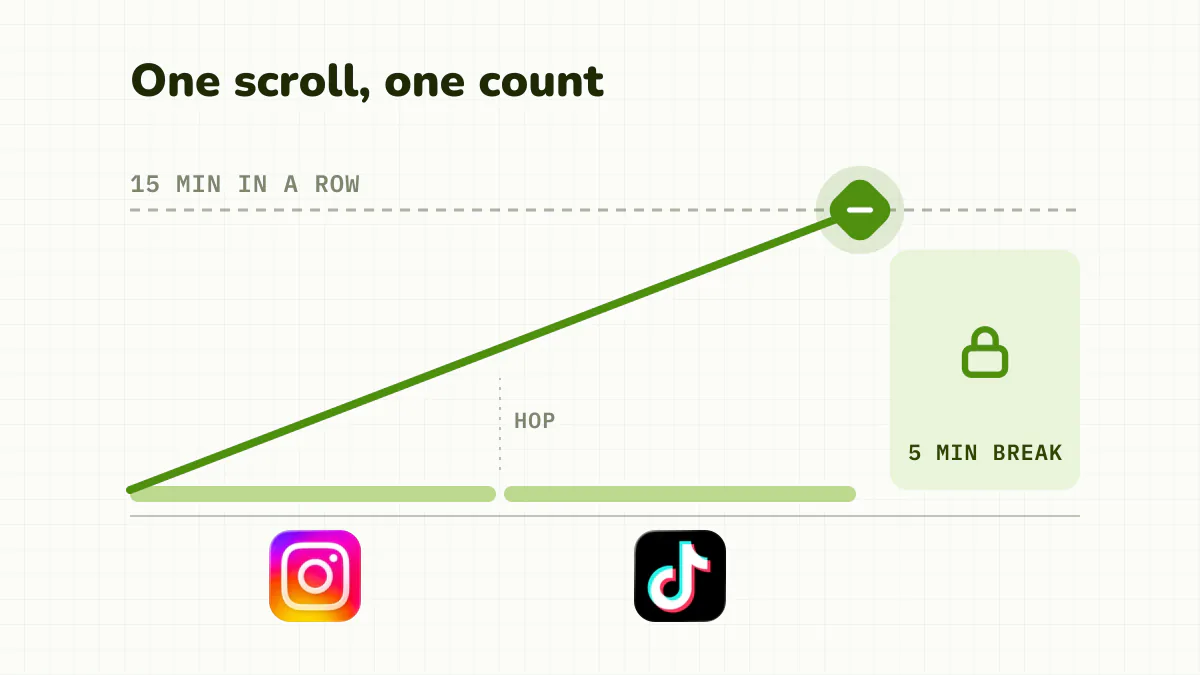
To block Instagram and TikTok on iPhone, put both apps under one shared limit, add an evening window, and kill their notifications. On iOS 27, App Limits are now Time Allowances (Settings > Screen Time > Time Allowances), set by category; on iOS 16 to 26 you still use App Limits. Either way, the catch with two feeds is the hop: Instagram hits its limit, you open TikTok, and the scroll never stops.
For one app only, see how to block Instagram on iPhone or block TikTok on iPhone.
Quick answer
- iOS 27: Time Allowances, both apps in one category with a short allowance, locked under Manage Screen Time > Lock Screen Time Settings.
- iOS 16 to 26: App Limits > Add Limit, select both apps, Block at End of Limit on.
- Evenings: a schedule with neither app allowed.
- The hop problem: one shared limit, never two budgets.
Why block Instagram and TikTok together?
Because the habit is the scroll, not the app. Block Instagram and your thumb finds TikTok; block TikTok and you're back in Reels. Both serve the same thing: short, unpredictable videos with no end.
So set it up for both at once, with one shared limit rather than two separate budgets.
How do I block Instagram and TikTok together on iOS 27?
iOS 27 (September 2026) replaced App Limits with Time Allowances, which work by category, and Downtime with Screen Time Schedule. A category is exactly the shared budget you want.
- Open Settings > Screen Time > Time Allowances. If asked, tap Turn On App & Website Activity.
- Tap Manage Categories and check that Instagram and TikTok sit in the same one, for example Social Media. To cover just these two, tap + and create a new category. Apple documents creating categories but not exactly how apps move between them; early hands-on reports say you can choose which apps a category holds.
- Tap that category and drag its slider to a short allowance, say 20 minutes.
- Open Always Allowed and make sure neither app is listed.
- Lock it: Manage Screen Time > Lock Screen Time Settings, with a code that isn't your phone's.
Apple says apps work "until they reach either the category's allowance or the daily total", so both apps draw from one pot.
Evenings: Screen Time Schedule, turn on Schedule, Add Schedule, pick the days and a window like 9 p.m. to 7 a.m. that doesn't allow that category.
Apple's iOS 27 guide doesn't mention Block at End of Limit or say what the limit screen offers when you set it yourself; early hands-on reports say Ignore Limit is still there. The new features also need version 27 on all your Apple devices.
How do I block Instagram and TikTok together on iOS 16 to 26?
One shared daily limit
- Open Settings > Screen Time.
- Tap App Limits > Add Limit.
- Select Instagram and TikTok together (or tick Social to catch every social app).
- Set a duration, for example 20 minutes a day.
- Turn on Block at End of Limit (it needs a Screen Time passcode).
Because both apps sit in the same limit, they share one budget. When it's gone, both icons grey out.
An evening window
- In Screen Time, tap Downtime.
- Turn on Scheduled and choose your hours, say 9:00 p.m. to 7:00 a.m.
- Under Always Allowed, make sure neither app is listed.
Hide them, silence them, close the browser
- Move both apps off your home screen into the App Library, and turn off their notifications.
- Block instagram.com and tiktok.com too, or the browser becomes the way round. On iOS 27, Apple doesn't document a website block list for your own iPhone; see how to block websites on iPhone.
Why do built-in blocks rarely last a week?
When the limit hits, the screen shows "Ignore Limit". One tap and you're back for 15 minutes or the whole day, right when willpower is lowest.
Two more problems:
- It's all or nothing. The whole app locks, so a glance counts like an hour. You unblock "just to reply to a message" and end up in Reels.
- The passcode is weak. If it matches your phone passcode, or you just know it, the block offers no real resistance.
More in how to block apps on iPhone.
How do you block Instagram and TikTok so it sticks?
Separate the glance from the doomscroll. Opening Instagram to reply to a friend isn't the problem; staying stuck for forty minutes is. Detox (iPhone and iPad, paid with a free trial) is built around that.
- Put Instagram and TikTok in one Detox rule. Messages, Maps and work apps stay untouched.
- Set a session limit, say 15 minutes in a row, then blocked for 5. Time in either app adds to the same count, so hopping from Instagram to TikTok doesn't start it over.
- Let quick checks through. Put the phone down or use other apps for a couple of minutes and the count resets to zero.
- Add a schedule to block both outright in the evening.
- Turn on Strict mode so you can't loosen the rule in a weak moment. An urgent unblock covers real emergencies, once every 24 hours.
| Screen Time | Detox | |
|---|---|---|
| Price | Free | Paid, free trial |
| At the limit | "Ignore Limit", one tap | Short break, no one-tap escape |
| What it counts | Daily total | Continuous scrolling across both apps |
| Quick glance | Counts like an hour | Goes through |
Which setup should you choose?
- A light, free nudge: one shared limit (a Time Allowance category on iOS 27, an App Limit before), apps off the home screen, notifications off.
- Nights only: a schedule on your danger window.
- To make it stick: a session limit across both apps, plus a strict schedule for the evening.
Combining works best: native settings for the baseline, a real barrier for the compulsive scrolling. For app-specific settings, see how to block Instagram on iPhone and block TikTok on iPhone. If the endless feed stays your weak point, read how to stop scrolling.
Frequently asked questions
How do I block Instagram and TikTok together on iOS 27?
App Limits became Time Allowances, which work by category. In Settings > Screen Time > Time Allowances, put both apps in one category (Social Media, or one you create under Manage Categories), give it a short allowance, and lock it under Manage Screen Time > Lock Screen Time Settings. Apple doesn't document moving apps between categories for your own iPhone, so check what each category holds.
How do I block Instagram and TikTok at certain times?
On iOS 16 to 26, Settings > Screen Time > Downtime > Scheduled, with neither app on Always Allowed. On iOS 27, use Screen Time Schedule > Add Schedule and leave their category out of the window.
Can I block just Reels without blocking Instagram?
No iPhone app can block only Reels and leave the rest of Instagram open. A session limit comes closest: quick checks go through, and the app locks only after a long stretch of scrolling.
Why do my Screen Time blocks never last?
When the limit hits, iOS shows Ignore Limit: one tap and you're back for 15 minutes or the day. Screen Time also treats a ten-second check like an hour of scrolling.