How to Block Social Media for Work or Study (iPhone and PC)
Block social media during work or study on iPhone (iOS 27 included) and desktop: the built-in tools, why they fail, and an automatic block that holds.
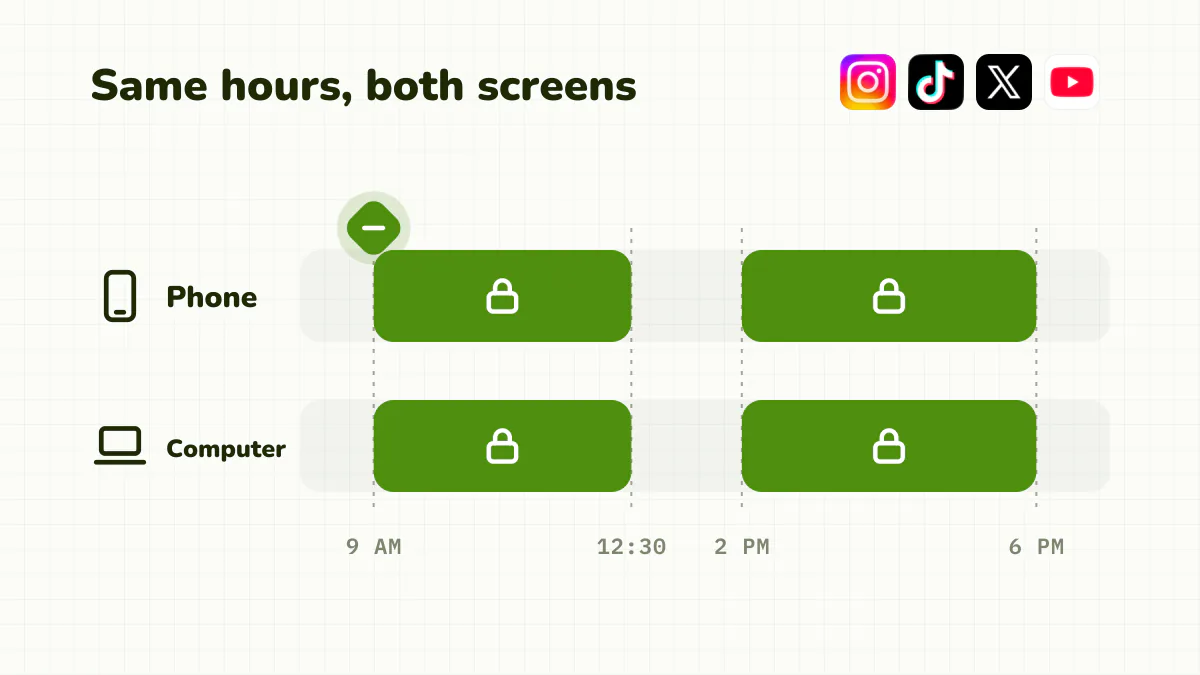
To block social media for work or study, schedule an automatic block for your focus hours on both your phone and your computer. Automatic matters more than strict: a block you have to switch on yourself gets forgotten on exactly the days you're tired. And cover both devices, or you'll just move the scroll to the other screen.
Quick answer
- Phone: a schedule that starts on its own (Screen Time Schedule on iOS 27, Downtime on iOS 16 to 26, Digital Wellbeing, or a blocker app).
- Computer: a browser extension (the Detox Chrome extension is free) or a hosts-file block.
- Sync the hours on both devices.
- To make it hold: a block without a one-tap off switch.
Why is blocking social media so hard to stick to?
Because most blocks are easy to undo, and your brain knows it. When the urge hits, a passcode or a quick reinstall is all that stands between you and the feed.
Social apps are built for this: endless feeds, unpredictable rewards, notifications that pull you back. Willpower isn't the right tool against that design. Change the environment instead, and start by deciding where and when the block applies.
The right block isn't the strictest one. It's the one you never have to decide on, and that's harder to get past than your impulse.
What built-in tools can block social media?
Your phone ships with one: Screen Time on iPhone, Digital Wellbeing on Android.
- iPhone, iOS 27: Settings > Screen Time > Time Allowances, then tap Social Media and set a short allowance. Details below.
- iPhone, iOS 16 to 26: Settings > Screen Time > App Limits, add Instagram, TikTok and X, set a short cap.
- Android: Digital Wellbeing > Dashboard, set an app timer, or use Focus mode to pause apps in chosen windows.
The flaw: they switch off in a tap or two. On iOS 16 to 26, the limit screen offers "Ignore Limit" and asks for a passcode you know by heart; early hands-on reports say iOS 27 keeps Ignore Limit too. Fine for a light block, fragile for real focus. Our guide to blocking apps on iPhone ranks every method by how easily you'll cheat.
How do I block social media on iPhone with iOS 27?
iOS 27 (September 2026) replaced App Limits with Time Allowances and Downtime with Screen Time Schedule. Allowances work by category, and Social Media is one of Apple's own, which suits this job. Check your version in Settings > General > About.
- Settings > Screen Time > Time Allowances: tap Social Media and drag its slider down. Apps stay usable until they hit "either the category's allowance or the daily total".
- Screen Time Schedule: turn on Schedule, tap Add Schedule, pick your workdays and hours, and leave Social Media out of the categories that window allows.
- Always Allowed: keep social apps off it. Apple says anything there works "regardless of any Screen Time schedules or Time Allowances".
- Lock it: Manage Screen Time > Lock Screen Time Settings, ideally with a code someone else picks.
- Cover your Mac and iPad: turn on Manage Screen Time > Share Across Devices. It needs version 27 on every device.
Apple's guide doesn't say which apps the Social Media category holds, so open the apps you mean afterwards and check they're limited. For social sites in Safari, Apple's iOS 27 guide doesn't document a website block list for your own phone; see how to block websites on iPhone.
How do you schedule blocks around work or study?
Skip the permanent block. Schedule windows that match your focus time and get social media back the rest of the day.
- Work: 9 a.m. to 12:30 p.m. and 2 to 6 p.m., Monday to Friday.
- Study: 90-minute blocks matched to your sessions, with a real break between each.
- Deep work: the first hour of the morning, when attention is most valuable.
On tired or stressed days, the days you would cave, the block is already running. More on study setups in stop phone distraction while studying.
How do you block social media on your computer too?
Cut Instagram on your phone and you'll open the tab on your laptop thirty seconds later. Options for the computer:
- A browser extension. The Detox Chrome extension is free: it blocks a site outright or gives it a daily limit, and hides Shorts, Reels and endless feeds on the sites you keep.
- The hosts file, which sends social domains to a dead end. More technical, hard to undo on reflex.
- Focus mode in macOS or Windows, which hides notifications.
With the Detox extension:
- Install it from the Chrome Web Store. No account needed.
- Open
instagram.com, click the Detox button in the toolbar and press Block. Chrome asks for access to that one site; allow it. Repeat fortiktok.com,x.comand the rest. - For a site you need for work, like YouTube or LinkedIn, keep it open and switch off its feeds, Shorts and recommendations instead, or give it a daily limit in minutes, posts or videos.
It has no schedule yet, so a blocked site stays blocked until you change it. If you only want blocks during work hours, a scheduling extension like LeechBlock does that. Then sync your phone schedule to the same hours. For the two biggest time sinks, see blocking Instagram and TikTok, and for YouTube alone, hiding YouTube Shorts on your computer.
How do you make the block actually last?
Make it hard to bypass while keeping useful apps open. Too easy and it folds; too drastic and it cuts you off from messages, so you disable the whole thing. Three things matter:
- Real friction. No one-tap off switch. The barrier should outlast the urge.
- Right timing. A limit on continuous use steps in only after a long stretch in one sitting. Quick checks go through; the doomscroll gets cut.
- Everything else stays free. Messages, Maps and work tools are untouched.
That is how Detox works (iPhone and iPad, paid with a free trial). Schedules lock social apps during your work or study hours, a session limit catches long scrolls outside them, and Strict mode stops you from editing or deleting a rule while it blocks. On the computer, the free Detox Chrome extension blocks sites and hides YouTube Shorts. It's built on research with Swiss universities and hospitals, published in JMIR Formative Research (our research). On Android, apply the same idea with Digital Wellbeing plus a dedicated blocker.
Where do you start today?
- Today: a schedule on your phone and a blocking extension on your computer, set for your next work or study slot.
- This week: turn off social notifications and move the icons off your Home Screen.
- To make it stick: add a hard-to-dismiss block that still leaves your useful apps open.
The bottom line
Focus doesn't need iron willpower. It needs an automatic block, timed to your work or study hours, on both your computer and your phone, and a barrier that doesn't fold in one tap.
Frequently asked questions
How do I block social media while I'm working?
Schedule a recurring block for your work hours (say 9 a.m. to 12:30 p.m. and 2 to 6 p.m.) instead of switching it on by hand. If you have to arm it yourself, you'll forget on the days you need it most.
What's the best way to block social media to study?
Tie an automatic, hard-to-dismiss block to your study slots and keep useful apps reachable. Deleting everything the night before an exam usually ends in a reinstall at the first break.
Is Apple Screen Time enough to block social media?
For a light block, yes. But it turns off in a tap or two with a passcode you know, so for serious focus you need something harder to get past than your own impulse.
How do I block social media on iPhone with iOS 27?
Go to Settings > Screen Time > Time Allowances and lower the Social Media category's slider. For work or study hours, add a Screen Time Schedule window that leaves Social Media out, then lock it under Manage Screen Time > Lock Screen Time Settings.
How do I block social media on my computer and phone at the same time?
On the phone, use Screen Time, Digital Wellbeing or a dedicated app. On the computer, use a browser extension such as the free Detox Chrome extension, or a hosts-file block. Cover both, or you'll switch to whichever one is open.